1.运行环境
操作系统:Windows Server 2003
数据库:MySQL Server 5.0
2.root用户密码修改步骤
①.打开三个CMD窗口准备MySQL密码修改;
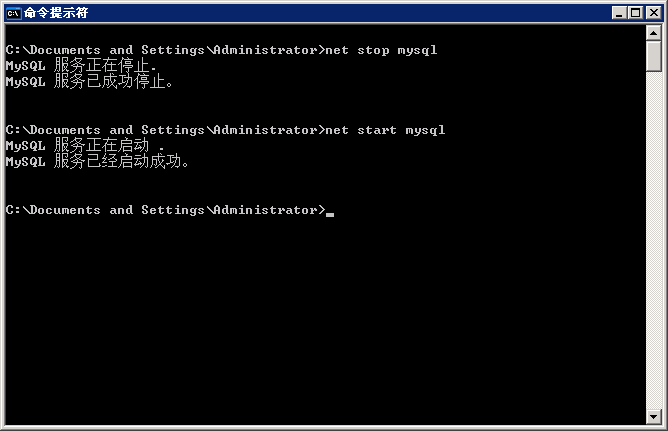
②.在第一个窗口执行"net stop mysql"命令停止MySQL服务;
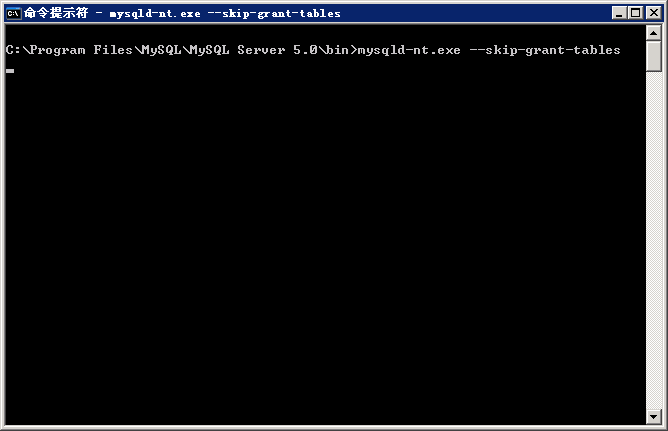
③.在第二个窗口执行下边命令设置启动MySQL时跳过权限检查:
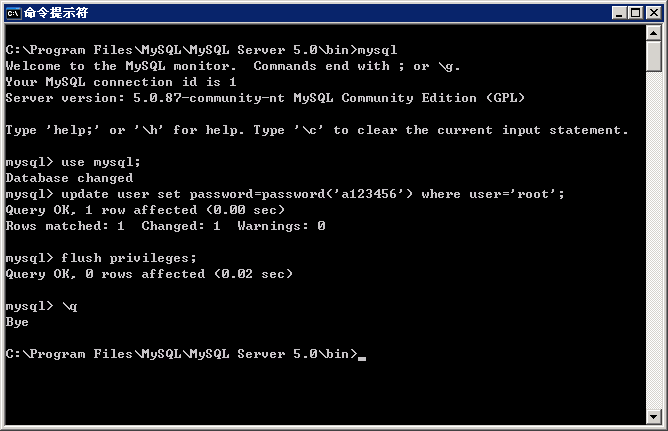
C:\Program Files\MySQL\MySQL Server 5.0\bin>mysqld-nt.exe --skip-grant-tables④.在第三个窗口执行下边命令修改root用户密码:
C:\Program Files\MySQL\MySQL Server 5.0\bin>mysql
mysql> use mysql;
mysql> update user set password=password('a123456') where user='root';
mysql> flush privileges;
mysql> \q⑤.关闭第二和第三个CMD窗口,打开Windows任务管理器,关闭mysqld-nt.exe进程[1];
⑥.在第一窗口执行"net start mysql"命令启动MySQL服务;
⑦.重新打开一个CMD窗口执行下边命令验证密码是否设置成功:
C:\Program Files\MySQL\MySQL Server 5.0\bin>mysql -uroot -pa123456
Welcome to the MySQL monitor.  Commands end with ; or \g.
Your MySQL connection id is 1
Server version: 5.0.87-community-nt MySQL Community Edition (GPL)

Type 'help;' or '\h' for help. Type '\c' to clear the current input statement.

mysql>3.步骤截图
4.补充说明
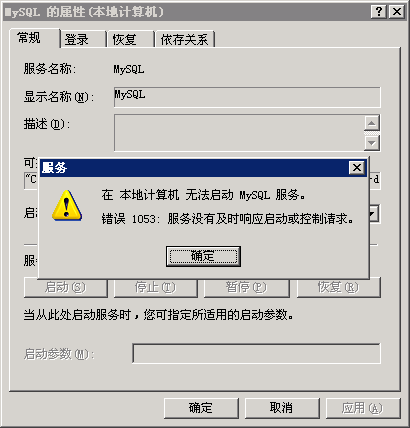
[1].若缺少第⑤步中关闭mysqld-nt.exe进程,则第⑥步无法启动MySQL服务:
[2].若修改完root用户密码后在phpMyAdmin无法登录,则在phpMyAdmin根目录下创建文件config.ini.php,内容为:
<?php
$cfg['PmaAbsoluteUri'] = "http://localhost/phpMyAdmin/";
$cfg['Servers'][1]['host'] = "localhost";
$cfg['Servers'][1]['auth_type'] = 'config';
$cfg['Servers'][1]['user'] = "root";
$cfg['Servers'][1]['password'] = "a123456";
?>
评论(0)
暂无评论。